



Most people carry a smartphone everywhere they go, yet surprisingly few have complete, up-to-date emergency information stored on it. You can store emergency information on your smartphone for first responders, family members, and hospital staff to access after a car accident, workplace injury, or sudden medical event. A well-prepared phone helps emergency responders communicate quickly with the people and providers who matter during those critical first minutes.
Why Your Phone’s Emergency Information Matters
In serious incidents-whether an accidente automovilístico on the freeway or an accidente de trabajo on a job site-victims may be unconscious or unable to speak. When that happens, the phone in their pocket may be the only way hospital staff can access a patient’s health details and stay informed enough to make faster treatment decisions.
The sections below cover exactly what emergency information to store, where to set it up on your device, and how to keep it accurate over time.
Critical Emergency Contacts to Store in Your Phone
Calling 911 is only one part of an emergency situation. If you are injured or taken to a hospital after a collision or workplace injury, medical staff may need to reach people who know your medical history or can help locate your legally authorized health care proxy.
Here are the types of emergency contacts to add:
- Primary family member (spouse, parent, or adult child)
- Backup family member in case the first person is unreachable
- Close friend or roommate who lives locally and can physically come to the scene or hospital
- Employer or supervisor for workplace incidents
- Main medical provider such as your family doctor or primary clinic
Emergency contacts should be labeled with relationships like ICE – In Case of Emergency so responders recognize them instantly. Use clear labels: “ICE – Maria (Esposa),” “ICE – Jose (Hermano),” or “ICE – Boss – Sr. López.” Avoid nicknames that a stranger would not understand.
Include a family emergency plan with an out-of-town contact person, and save that contact plus local non-emergency numbers in your phone, so someone can coordinate communication if local contacts are also affected by the same event.
Beyond 911, consider saving your local non-emergency police line, poison control center (1-800-222-1222), pediatrician’s office if you have children, and a roadside assistance number if you drive frequently. Periodically verify these numbers through official sources, and confirm that your personal emergency contacts are still willing to be listed.
What to Include in Your Phone’s Medical ID / Emergency Info
Medical ID on an iPhone and emergency info on Android phones are special areas where you enter medical information that first responders can see from the lock screen-even when the phone is locked. Medical IDs store critical medical information on smartphones and make it easily accessible during an emergency call or when emergency services arrive.
Emergency profiles should include vital medical information and personal contacts. In one small Level I trauma-center study, smartphone emergency ID information was relevant to immediate care in six of the eight cases in which usable information was available.
- Full legal name and date of birth – emergency information includes basic identification details such as name and date of birth so medical staff can properly identify you
- Blood type (only if confirmed by a lab or doctor)
- Chronic conditions – chronic conditions include diabetes, epilepsy, and heart conditions, along with asthma or any ongoing treatment like chemotherapy
- Current medications and dosages – current medications and dosages should be recorded for emergency use, including blood thinners, insulin, heart medications, and daily over-the-counter drugs
- Serious allergies written clearly: “Penicillin allergy – causes anaphylaxis,” “Peanuts – severe allergy,” “Latex allergy”
- Preferred hospital or clinic system, especially if you regularly receive care in one network or VA system
- Language preference – adding “Primary language: Spanish” helps emergency services know to request Spanish-speaking staff or interpreters
Medical IDs can include allergies, medications, and emergency contacts all in one accessible view, giving responders a comprehensive snapshot when seconds count.
How to Set Up Medical ID and Emergency Info on iPhone and Android
Both iPhones and Android phones include built-in tools for emergency information, but the setup steps differ by device.
On iPhone, open the Health app, tap your profile picture, and select Medical ID. Tap Edit, add the information you want to include, and turn on “Show When Locked” so it can be viewed without your passcode.
In the U.S. and Canada, you may also be able to turn on “Share During Emergency Call,” which can automatically share your Medical ID with emergency services when you call or text them. Availability may vary by country or region.
To view a Medical ID from a locked iPhone, swipe up or press the Home button, depending on the model. Tap “Emergency” on the passcode screen, and then tap “Medical ID.” If you use an Apple Watch, your Medical ID can also be available from the watch during an emergency.
On Android, the general path is Settings → Safety & emergency → Medical information or Emergency contacts. Menu names and available features vary by device, manufacturer, Android version, carrier, and region.
On supported devices, Google’s Personal Safety app can store medical information and emergency contacts and may offer features such as Emergency SOS, emergency location sharing, and car crash detection. Emergency SOS is generally available on Android 12 and later, but not every Android phone supports every feature.
Depending on your settings, pressing the power button five or more times may start Emergency SOS actions, such as calling emergency services or sharing your location. Car crash detection requires a supported device and may also require a SIM card, location services, and the necessary permissions.
After setting it up, lock your phone and confirm that your emergency information is visible from the Emergency screen. Do not complete an emergency call while testing.
Using Lock Screen Access, Emergency SOS, and Location Sharing
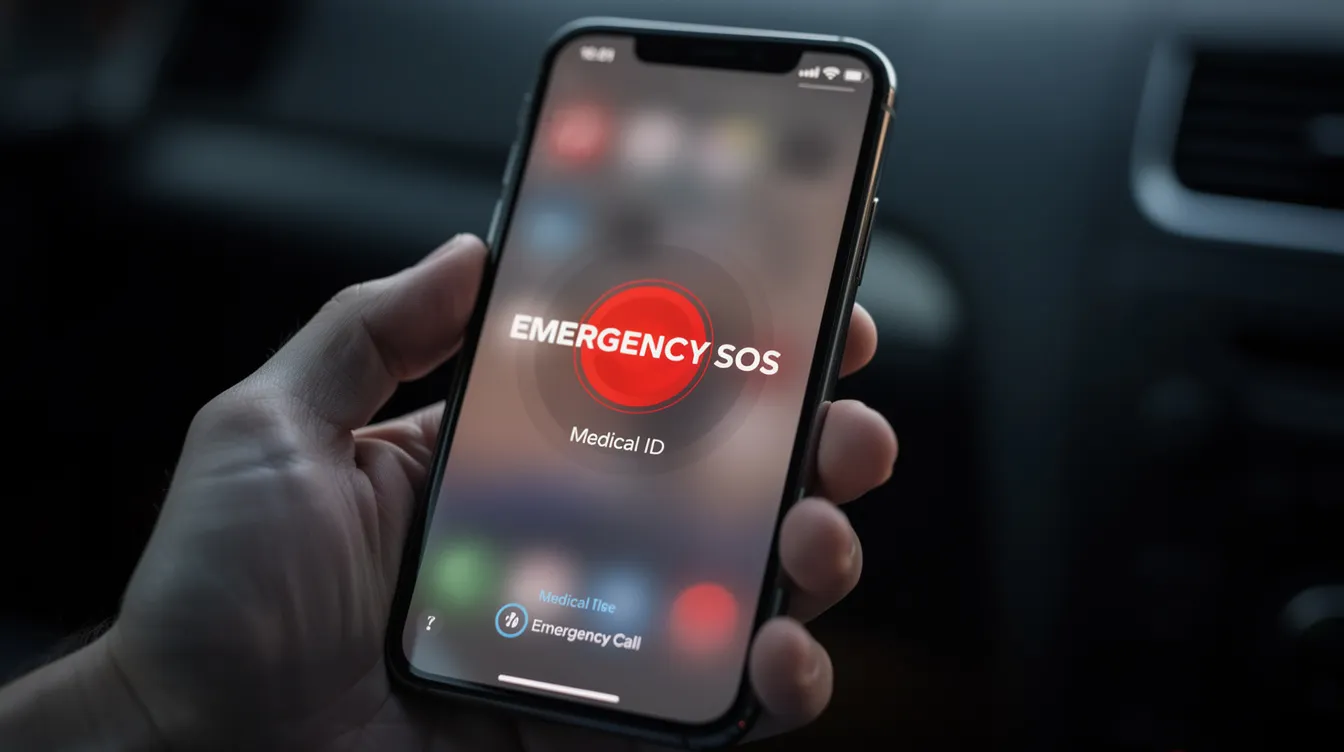
Emergency info is most helpful when first responders can reach it without a passcode and when emergency SOS and location sharing are properly configured on your device.
The lock screen “Emergency” button on both iPhone and Android allows access to emergency calls and, when configured, to medical ID or emergency information without unlocking the phone. On an iPhone, press and hold the side button and a volume button simultaneously to trigger emergency SOS, which can quickly contact emergency services and optionally send your current location and real time location updates to your emergency contacts, who may also receive a text message.
On many Android phones, rapidly pressing the power button several times activates a similar feature. Your phone can contact emergency services automatically in some regions when a crash is detected-in fact, your phone can detect serious car accidents and alert local emergency services without you pressing anything.
Include a lock screen message with short, discreet text like “In emergency, call ICE – Maria at [number]” or “Medical conditions in Emergency Info.” Avoid displaying your full home address or overly sensitive personal details on the lock screen.
Location sharing can also be set up through apps like Google Maps or Apple’s Find My, so family can see where a loved one is if they do not return from work or a trip as expected. This feature can provide an accurate location to help a person be found quickly during a crisis.
Keeping your phone functional matters just as much as what you store on it. Keep your phone charged to ensure it can contact emergency services when you need them. Keep your phone charged and enable optimized or adaptive charging when available. Consider carrying a portable charger on long drives or job sites. Enable smart charging features to extend battery lifespan. A portable charger provides backup power when outlets are unavailable-always carry an extra charger for emergencies, especially on long drives or job sites.
A backup card in your wallet can help if your phone is unavailable or lost.
Extra Digital Documents and Notes That Help in an Accident
Beyond medical ID and emergency contacts, storing key documents on your phone can simplify life after an accident or injury. Photos or scans of essential documents can be securely stored as PDFs or images:
- Front and back of driver’s license
- Health insurance card (your health insurance provider and policy number should be included in emergency contacts or notes)
- Auto insurance card
- Work ID badge, if workplace accidents are a concern
- Vehicle registration
Digital emergency information can include important phone numbers and insurance details all in one place. Consider saving a simple “accident checklist” note on your phone with steps like: move to safety when possible, call emergency services, take photos of the scene, get witness contact information, and note the time, date, weather, and road conditions. If you need guidance on what to do in those first minutes, this step-by-step guide for injured drivers can help.
Store a recent photo on your phone for identification purposes in case someone else needs to identify you. Use a locked or hidden folder on your device to secure sensitive items-such as copies of insurance documents-balancing access in emergencies with protecting against theft.
Keep a short list of numbers for your workplace safety office, primary care clinic, and any specialist managing ongoing conditions. Adding a brief summary note of prior injuries or surgeries (for example, prior whiplash or back surgery) can be relevant for medical staff evaluating new lesiones personales after a crash, and may also assist an attorney reviewing your case.
Safety and Privacy: Balancing Access and Protection
A common worry is that if emergency information is visible from the lock screen, a stranger who finds or steals the phone could see sensitive details. This concern is valid, but the risk is manageable.
First responders only see data entered into the medical ID or emergency information sections. They cannot access texts, photos, or apps behind your phone’s passcode or biometric lock. When you set up your emergency info, prioritize what helps in a medical emergency-conditions, allergies, medications, emergency contacts-and leave out financial details or your full home address.
Use a strong passcode and enable device encryption while keeping emergency info and emergency calls accessible from the lock screen. Security and emergency access can coexist. For anyone concerned about domestic violence or harassment, it may be safer to list a trusted friend, shelter hotline, or attorney’s office instead of a partner’s number as the main emergency contact.
Review your privacy settings and emergency info at least once or twice a year to keep details accurate and remove anything that no longer feels comfortable to share. Even putting the phone in airplane mode does not erase what is stored-so keeping the data current is what matters.
Keeping Emergency Info Updated and Getting Legal Help After an Accident
Emergency information is not something to set once and forget. It can become outdated after a new diagnosis, a medication change, a move, or a job change. Updating your Medical ID regularly is essential for accuracy.
Review emergency contacts and medical info every 6–12 months, after major doctor visits, or whenever you start or stop important medications. Check that emergency SOS features, location sharing settings, and any personal safety app still work after major phone updates or when switching to a new device.
f you were injured in a car accident, workplace accident, or another incident and have questions about your legal options, Los Defensores may help connect you with an independent attorney. Los Defensores is a legal advertising service, not a law firm. Any legal advice or representation is provided by the independent attorney.
Update your phone’s emergency information today. And if you have questions after an accident, contact Los Defensores for a free, confidential, no-obligation consultation in Spanish.
This content was created with the assistance of AI and is provided for general informational purposes only. It does not constitute legal advice. For guidance specific to your situation, please consult with a licensed attorney.